
Taking a screenshot on an HP laptop is quick once you know the right method. Whether you want to capture the entire screen, a specific window, or a custom area, Windows offers several built-in screenshot tools that work perfectly on HP laptops.
In this guide, you will learn all possible ways to take screenshots on an HP laptop, where screenshots are saved, how to fix common screenshot problems, and which method works best for your needs.
What Is a Screenshot and Why You May Need One?
A screenshot is an image capture of what is currently displayed on your screen. People commonly take screenshots to:
- Save important information
- Share error messages
- Capture online receipts
- Create tutorials or guides
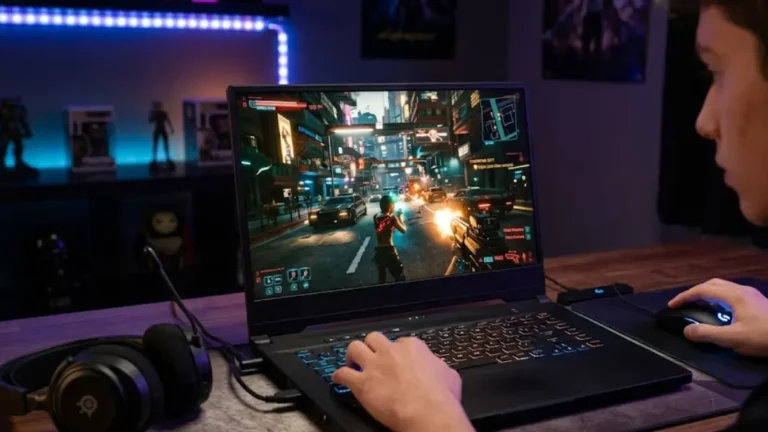
- Save gaming moments
HP laptops running Windows 10 or Windows 11 support multiple screenshot methods without installing any extra software.
Method 1: Take a Screenshot Using the Print Screen (PrtScn) Key
This is the most common and simplest method.
Steps
- Press the PrtScn (Print Screen) key on your HP laptop keyboard
- The entire screen is copied to the clipboard
- Open Paint, Word, or any image editor
- Press Ctrl + V to paste and save the screenshot
Best For
- Capturing the full screen
- Quick screenshots without auto-saving
Method 2: Screenshot the Active Window (Alt + PrtScn)
If you only want to capture the currently active window:
Steps
- Click on the window you want to capture
- Press Alt + PrtScn
- Paste the screenshot into an editor and save it
Best For
- Capturing a single app or browser window
- Avoiding background clutter
Method 3: Automatically Save Screenshot (Windows + PrtScn)
This method saves screenshots automatically.
Steps
- Press Windows + PrtScn
- Your screen will briefly dim
- Screenshot is saved automatically
Where It Saves
Pictures → Screenshots
Best For
- Fast screenshots
- Users who do not want to paste manually
Method 4: Take a Screenshot Using Snipping Tool (Windows 10 & 11)
The Snipping Tool is a built-in Windows app that allows precise captures.
How to Use Snipping Tool?
- Open the Snipping Tool
- Click New
- Select the snip type:
- Rectangular
- Freeform
- Window
- Full screen
- Rectangular
- Capture and save the screenshot
Best For
- Custom area screenshots
- Editing before saving
Method 5: Use Windows + Shift + S (Quick Snip)
This is the fastest modern method.
Steps
- Press Windows + Shift + S
- Choose a snip type from the overlay
- Screenshot is copied to the clipboard
- Click the notification to edit or save
Best For
- Precision screenshots
- Quick sharing
Method 6: Screenshot Using Xbox Game Bar (For Games & Apps)
Xbox Game Bar is useful for capturing screenshots during games or apps.
Steps
- Press Windows + G
- Click the Camera icon
- Screenshot is saved automatically
Save Location
Videos → Captures
Best For
- Gaming screenshots
- Full-screen apps
Screenshot Shortcuts on Different HP Laptop Models
HP keyboards may vary depending on the model.
Common HP Models
- HP Pavilion
- HP Envy
- HP Spectre
- HP EliteBook
- HP Omen
Important Tip
Some HP laptops require:
Fn + PrtScn
If the Print Screen does not work, always try pressing the Fn key.
How to Screenshot on HP Laptop (Windows 10 vs Windows 11)?
| Feature | Windows 10 | Windows 11 |
| Print Screen | Yes | Yes |
| Snipping Tool | Yes | Yes (Updated) |
| Snip & Sketch | Yes | Integrated |
| Xbox Game Bar | Yes | Yes |
| Auto Save (Win + PrtScn) | Yes | Yes |
Windows 11 has a more advanced Snipping Tool with better editing options.
Where Are Screenshots Saved on an HP Laptop?
This depends on the method used.
Screenshot Save Locations
- PrtScn / Alt + PrtScn → Clipboard
- Windows + PrtScn → Pictures → Screenshots
- Snipping Tool → User selected location
- Xbox Game Bar → Videos → Captures
How to Change Screenshot Save Location?
- Open File Explorer
- Right-click Screenshots folder
- Select Properties
- Go to Location
- Choose a new folder
Screenshot Not Working on HP Laptop? Try These Fixes
If your screenshot shortcut is not working, try the following:
Use the Fn Key
Many HP laptops require Fn + PrtScn.
Enable Print Screen Shortcut
- Go to Settings → Accessibility → Keyboard
- Enable Use the Print Screen key to open Snipping Tool
Update Keyboard Drivers
- Open Device Manager
- Update keyboard drivers
Use On-Screen Keyboard
- Search On-Screen Keyboard
- Click PrtScn to test
Use Alternative Methods
If the key is broken, use Windows + Shift + S or Snipping Tool.
Best Screenshot Method for HP Laptop (Comparison)
| Method | Best Use | Auto Save |
| PrtScn | Full screen | No |
| Alt + PrtScn | Active window | No |
| Win + PrtScn | Quick screenshots | Yes |
| Snipping Tool | Precision | Optional |
| Win + Shift + S | Fast custom snips | No |
| Game Bar | Games & apps | Yes |
Final Thoughts
HP laptops offer multiple easy and reliable ways to take screenshots. Whether you prefer keyboard shortcuts, built-in tools, or automatic saving, Windows 10 and Windows 11 give you complete flexibility.
Once you master these methods, capturing anything on your HP laptop becomes effortless.
Frequently Asked Questions (FAQs)
Does an HP laptop have a screenshot button?
Yes, HP laptops use the Print Screen (PrtScn) key, sometimes combined with the Fn key.
Why is Print Screen not working on my HP laptop?
This usually happens due to keyboard settings, outdated drivers, or missing Fn key usage.
Can I screenshot part of the screen on my HP laptop?
Yes, use Windows + Shift + S or the Snipping Tool.
How do I take a screenshot without a Print Screen?
Use the Snipping Tool, Windows + Shift + S, or Xbox Game Bar.
Where do screenshots go on Windows 11 HP laptops?
Auto-saved screenshots go to Pictures → Screenshots.